ChatGPT Changed Something… Did You Notice the Dots?
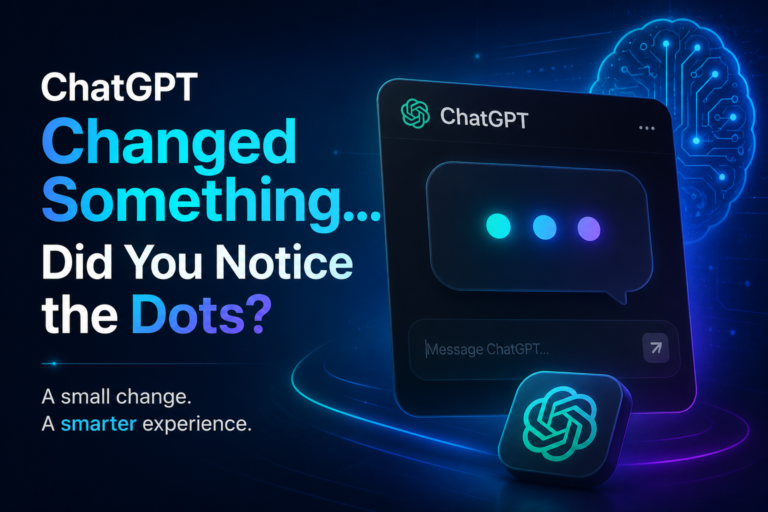
You open ChatGPT. You type a question. Then three small dots appear and bounce for a moment.
Most of us never think about them. But those dots now sit at the center of some of the biggest AI updates of the year.
OpenAI has been busy, and the changes are easy to miss if you only use ChatGPT for quick answers. In this post, we’ll look at what has changed and why it matters. We’ll also see how it compares to Gemini, and how you can use all of it to save time.
Let’s start with the dots.
What Are Those Dots, Really?
Three animated dots are a common sign that someone, or something, is working on a reply. Chat apps show them so you know the app got your message and an answer is coming.
In ChatGPT, they mean something a little deeper. They tell you the model is thinking.
That matters because the amount of thinking ChatGPT does can change the quality of the answer. A quick question needs a quick reply. A hard question needs more time.
Here is why this small detail is worth your attention:
- The dots show that ChatGPT is working, not frozen.
- A longer wait can mean a deeper, more careful answer.
- A short wait is fine for simple tasks like rewriting a sentence.
Knowing this helps you get better results. You stop guessing, and you start choosing.
You Can Now Choose How Long ChatGPT Thinks
This is one of the most useful recent AI updates from OpenAI.
Reports say OpenAI updated GPT-5.6 Sol. Its answers are now shorter and cleaner, with less formatting and no extra detail.
In simple words, you now control how long those dots keep bouncing.
Think of it like cooking:
- Short thinking time is like making instant noodles. It’s fast and good for easy tasks.
- Long thinking time is like cooking a full meal. It takes longer, but the result is richer.
Here are some easy ways to use the slider:
- Use less thinking time for quick edits, captions, and short replies.
- Use more thinking time for planning, research, and problem solving.
- Try both on the same question and compare the answers.
The slider is a small control, but it changes how you work with ChatGPT every day.
Answers Are Getting Shorter and Cleaner
Have you ever asked a simple question and got a very long answer? Many people have.
OpenAI has been working on this. Reports say GPT-5.6 Sol now gives shorter answers. It uses less formatting and skips details you don’t need.
An earlier update to the default model moved in the same direction. The update also makes replies shorter. ChatGPT now asks fewer extra questions and uses fewer emojis. For you, this means:
- Less scrolling to find the answer.
- Fewer extra bullet points you didn’t ask for.
- More time to actually use what you read.
If you write blogs, emails, or reports, this is a big help. You get cleaner drafts that need less editing.
More Free Power for Everyone
Here is good news for people who don’t pay for ChatGPT.
The same update that added the slider also changed things for free users. Reports say the update extends unlimited text chats to free users and gives them broader access to GPT-5.6 Luna.
That is a real shift. Not long ago, free users hit limits quickly. Now more people can use strong ChatGPT features without opening their wallet.
A few things to remember:
- Text chats are the main gain for free users.
- Messages with file uploads or image creation can still have separate limits.
- Paid plans still get the most advanced tools first.
If you’ve been waiting to try ChatGPT seriously, this is a good time to start.
ChatGPT Is Now Inside Microsoft Word
This one is a big deal for writers, students, and office workers.
On September 17, 2026, OpenAI’s release notes announced ChatGPT for Word. It is available on all ChatGPT plans, including Free. openai
To get started, you install the ChatGPT add-in from Microsoft Marketplace, open ChatGPT in Word, and sign in. openai
Why does this matter? Because you no longer need to copy and paste between two windows. You can work with AI right where you write.
Here are some ways to use it:
- Ask for a better opening line for your document.
- Make a long paragraph shorter and clearer.
- Turn rough notes into a neat summary.
- Check your tone before you send a formal email.
It’s a simple idea, and it saves a lot of small, boring steps.
Flashcards and Better Images
Two more updates are worth a quick look.
Flashcards. ChatGPT now lets you create interactive flashcards, and this is available on mobile and web for all plans. Students can turn notes into study cards in seconds.
Teachers and trainers can build quick quizzes for their classes. openai
ChatGPT Images 2.5. OpenAI’s release notes list an update called ChatGPT Images 2.5, with new ways to create and edit pictures. If you make social media posts or banners, it’s worth testing. openai
Here is a simple way to try both this week:
- Paste your study notes and ask for ten flashcards.
- Ask ChatGPT to create a simple image for a blog or post.
- Edit the image with a short follow-up message.
Small experiments like these show you what the tool can really do.
How Does Gemini Fit In?
You can’t talk about ChatGPT without talking about Gemini, Google’s AI assistant.
Both tools are growing fast, and both keep adding features. When one company launches something new, the other usually follows with its own version. That is good for users, because competition pushes the quality up.
So which one should you use? The honest answer is that it depends on your task.
- Try ChatGPT if you like its writing style and its newer tools, such as the Word add-in.
- Try Gemini if you already live inside Google apps and want AI close to them.
- Use both on the same question when the answer is important, and compare the results.
You don’t have to pick one forever. Many people keep two or three AI tools and use each for what it does best.
The best habit is simple: stay curious and test new features yourself.
Why These AI Updates Matter for You
It’s easy to read news about OpenAI and feel it’s only for tech experts. It isn’t.
OpenAI said about 1 billion people use ChatGPT each week for tasks like quick questions, web searches, writing, planning, and big decisions. That means these changes touch a huge number of everyday lives. itbrief
Here is what the latest AI updates mean in real life:
- For students: faster notes, flashcards, and clearer explanations.
- For business owners: quicker drafts, better ideas, and less time on routine work.
- For content creators: cleaner writing help and easier image creation.
- For job seekers: better resumes, practice questions, and email drafts.
You don’t need to learn everything at once. Pick one feature and use it for a week.
A Few Smart Tips to Get Better Results
New tools only help if you use them well. Here are some simple tips that work with ChatGPT or any AI chatbot:
- Be clear. Say exactly what you want, who it is for, and how long it should be.
- Give context. Tell the AI your goal. A good answer starts with a good question.
- Ask for changes. If the first answer is not right, say “make it simpler” or “make it shorter.”
- Check facts. AI can make mistakes, so verify important numbers and names.
- Match the thinking time to the task. Use the slider wisely.
These habits take only a minute, and they improve your results every time.
One Change to Know About: The Pro Plan Pause
Not every update is a new feature. Some are about plans and prices.
OpenAI stopped new sign-ups and upgrades to its $200 ChatGPT Pro plan on September 10, 2026. People who already have it can keep it, and the $100 Pro plan is still available.
If you were planning to upgrade, check OpenAI’s official pricing page first. Plans can change quickly, and the details may be different by the time you read this.
The Big Picture
So, did you notice the dots?
They are small, but they show where ChatGPT is going. The tool is becoming more flexible. You can pick how long it thinks. You get shorter answers, more free access, and tools that live inside apps you already use, like Word.
At the same time, Gemini and other rivals keep pushing forward. That means more choice for you, and better tools every few weeks.
The lesson is simple. Don’t let these changes pass you by. Spend ten minutes this week exploring what is new:
- Open ChatGPT and try the thinking-time slider.
- Make a set of flashcards from your own notes.
- Install the Word add-in and test it on a real document.
- Ask both ChatGPT and Gemini the same question and compare.
The people who learn these tools early are the ones who save the most time later. So the next time those three dots appear, remember that something useful is on its way, and now you have more say in how it gets there.
Which new ChatGPT feature will you try first? Share it in the comments, and keep following our blog for the latest AI updates in plain, simple words.